
Introduction
I follow a lot of racing series from all over the world. Watching them is a huge challenge. Different time zones, different broadcast rights, this week on this channel, next week on that one, etc. Sometimes, theres no way for me as an American to watch, Super Formula before 2026 for example.
There are Internet TV providers all over the internet. Some of them legal, some of them less so. They contain TV channels from all over the world, a huge variety of networks. With this setup a race not being broadcast in my country is no longer a problem. Alone these channels don’t solve my issues.
I can not and will not help you find sources. Do not contact me asking for help with this.
One of the common issues with them is like other internet grey areas, they come and go all the time. A provider here today could vanish over night. Another issue is that depending on your ISP and popularity of the event, you can have huge issues streaming, with stutters and freezing.
I use an amazing app called Dispatcharr to solve all of that, and get the best of everything.
Disclaimer
I help Dispatarr dev team in a small capacity but do not do any coding work on the project. All the same, it felt right to share my connection to the project. Opinions and thoughts shared here are mine and do not represent Dispatcharr.
Getting Dispatcharr
The best way to install Dispatcharr is in Docker. It runs as a single container on any Linux or Mac host. It does work on Windows docker but there are extra bugs and it just doesn’t work as well in my opinion.
You can also run it on Kubernetes, and this is how I run it, but that is a more advanced setup.
I will defer to the Dispatcharr Docs here, they are amazing and kept up to date: https://dispatcharr.github.io/Dispatcharr-Docs/installation/
Setting Up Accounts
First thing, add your sources to Dispatcharr. I have 3 total sources, and a 4th I’ll go over later. You can setup your sources via 2 main methods, XC or M3U.
XC stands for Xtream Codes and is the most popular. It is faster and supports more features than the other method M3u. M3u does not stand for anything, it is the file extension.

We have multiple sources so if one source is having issues, Dispatcharr will automatically switch to a different source. These sources have a lot of overlap and that is what we want. There is a checkbox to add EPG for each source you add. Add at least 2 or 3 of these. Just like channels, we can mix and match EPG from multiple sources. EPG is guide data, letting you know what’s on each channel.
For each account you add, you will presented with a list of groups. Don’t feel like you need to add all of them, look through them and add the ones you care about. It seems slow and tedious but its one time work, and it will make the day to day use of the app much faster.
Creating The Channel List
This is completely up to you. Your channel listing can be broken up into groups and as we continue through this, you will see the benefits of that type of setup. I have a default group for a standard cable line up, a dedicated racing group for all my motor racing channels, and groups for other sports.
You can add as many channels as you want but I personally recommend not going above 1000. Dispatcharr can handle it, but its just too unwieldy and too much stuff to look through trying to watch something. Its a bad user experience.
I also have secondary ABC and Fox affiliates. They are both in higher quality than my local affiliate. Another benefit is, in weather events, I can use the other affiliate to watch whatever the event is.
The Interface
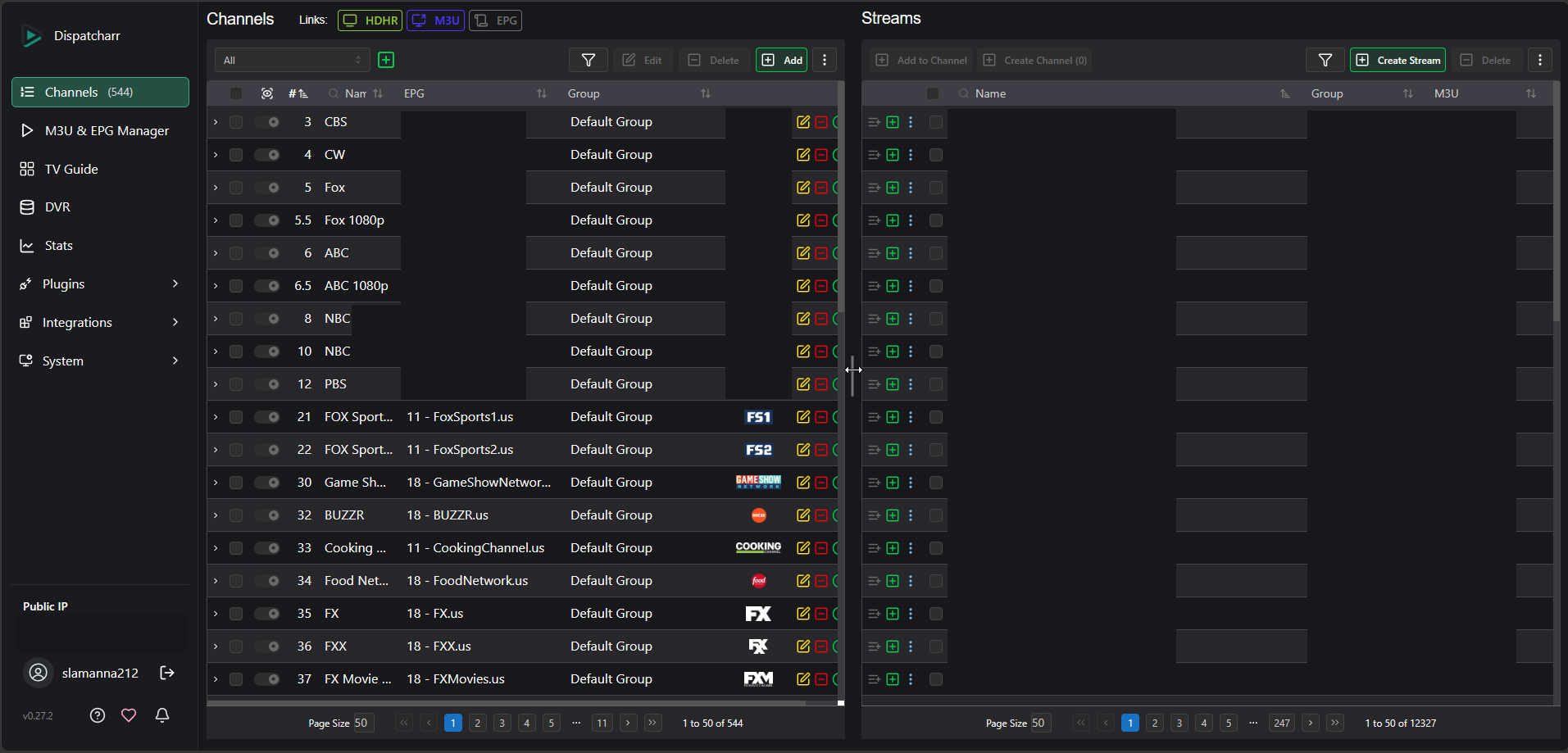
Here is the main interface of Dispatcharr. Left half is your channel listing, and right half are all of the channels from your provider. Press the little Green button on the right side to create a channel on the left.
Go through and setup your basic lineup, you can edit this at any time in the future so don’t feel pressured. Just setup a basic list, leaving gaps between sections. Don’t forget, you can also do .1 channels, so Channel 4, 4.1, 4.2, and 4.3 can all coexist.
Backup Sources
Once you have your initial lineup, it’s time to go back through and add backups. Yes this is manual work, but again, one time and will lead to a much better day to day experience.
Using the search at the top right, search for each channel, and add all to each channel. You do this by selecting your channel on the left side, and then clicking the blue button that lights up next to channels on the right.
When you click a channel on the left, a drop down opens and you can see all your sources. This is where Dispatcharr becomes unbeatable.
Every source you find for a channel will be a different quality. I am talking about things like resolution, bitrate, etc. We are using multiple sources and can use the best channels from each source, with the others as backups. This is why we want multiple sources.
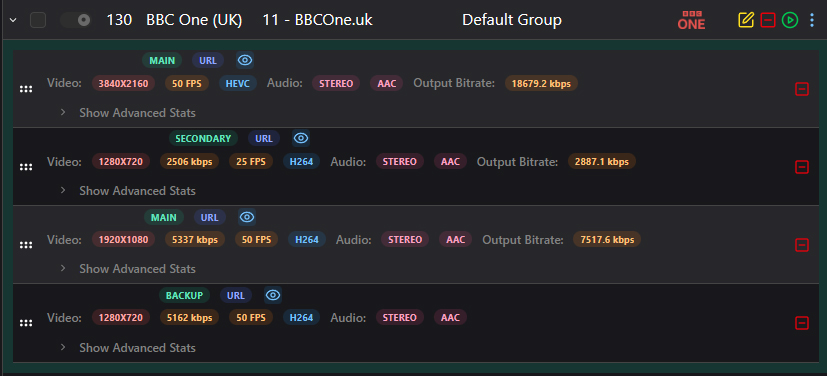
The above example is for BBC One. I have 4 sources for this channel and they are ranked. If you watch a source, Dispatcharr remembers the media info like resolution, framerate, bitrate, and more. We can use this info to rank each channel as you can see I’ve done here.
1 4K source so of course thats at the top, then a different source, then a different stream from the first source, then a 3rd different source.
This part is optional but leads to the best experience in my opinion.
Extras and Plugins
At this point you have a channel list setup and channels have backups. This is a solid setup and works well. You can stop here, but all of the “extras” and other things we can do are so worth it.
Options below are only stracting the surface, and a huge community has formed around the app constantly creating new things. You can watch the plugins tab but joining the Dispatcharr Discord is the best way to see new plugins coming out.
VPN
Sending all of your Dispatcharr traffic through a VPN will help with reliability and speed. I use Mullivad VPN, Wireguard with Gluetin. Ask your source where they are and pick a VPN close to there if possible.
Auto Sync Channels
Sometimes you will find sources that have channels that change daily. Sorts channels, PPV events, etc. Dispatcharr can handle those automatically through a feature called Auto Channel Sync. In the M3U & EPG Manager tab in Dispatcharr, click the yellow edit button for an M3U account, and then groups.
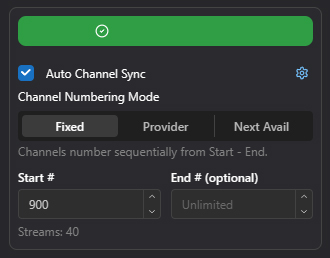
Click the checkbox for Auto Channel Sync. Set what number the channels should start at, and advanced options via the settings gear.
Use this sparingly, not for every channel you have. Using this for non event channels will break things and lead to issues.
Plugins
There is a plugin’s tab in Dispatcharr. A lot of great plugins covering various things can be found here. I use the Prometheus Exporter, IPTV Checker, and Tickarr.
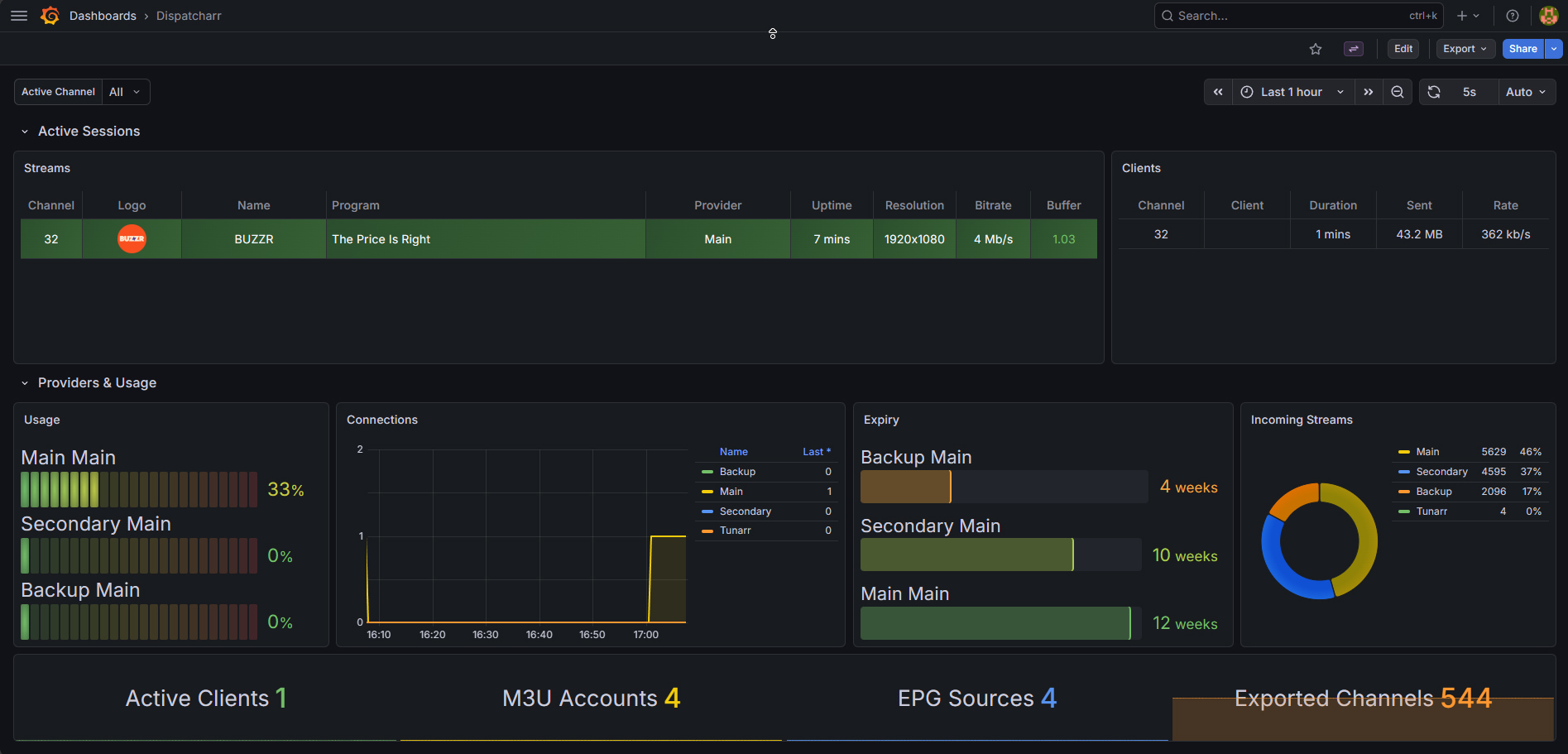
The Prometheus Exporter plugin can be used to create Grafana Dashboards:
Tunarr
This is only vaguely Dispatcharr related but it is in a bunch of screenshots so I wanted to explain. Tunarr lets you create live TV channels from your Plex or Jellyfin library. I have channels setup that when someone tunes into them, Tunarr starts playback. I use it for when I just want to watch mindless sitcoms or endless The Simpsons reruns (the good seasons!).